

An SPF checker is a diagnostic tool used to inspect whether a domain has a properly configured SPF record. SPF, or Sender Policy Framework, is an email authentication standard defined in RFC 7208 that tells mailbox providers which mail server systems and authorized IP addresses are allowed to send email on behalf of a domain name.
How Sender Policy Framework Protects Your Domain
Sender Policy Framework helps prevent email spoofing by allowing receiving servers to compare the sending IP address against the domain’s published SPF policy. If the sending source is listed among the authorized IP addresses or authorized senders, the message can receive an SPF pass. If not, it may trigger an SPF fail, increasing the chance that the message is rejected, quarantined, or sent to spam.
SPF is especially important for email spoofing prevention, phishing protection, and outbound email authentication. Without a valid SPF record, attackers can more easily send a spoofed email that appears to come from your domain.
Why SPF Matters for Email Deliverability
Strong email authentication directly affects email deliverability. Google, Microsoft, Verizon, Outlook, and other mailbox providers, sometimes called MBPs, evaluate SPF validation results along with DKIM and DMARC when deciding whether to trust incoming mail.
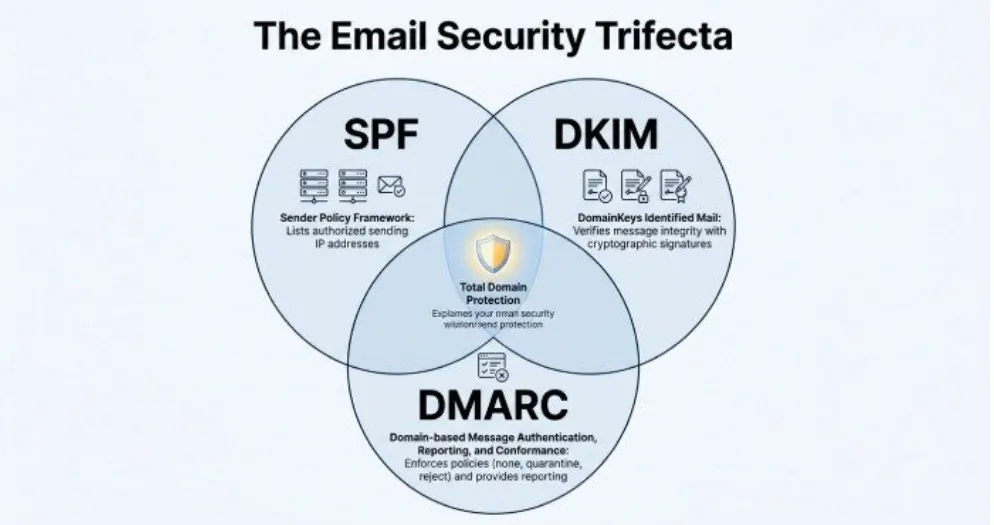
SPF does not work alone. It should be part of a broader email security strategy that includes DomainKeys Identified Mail, commonly known as DKIM, and DMARC. Together, SPF, DKIM, and DMARC strengthen domain verification, reduce phishing risk, and help mailbox providers identify legitimate senders.
What an SPF Checker Actually Does
An SPF checker tool performs several checks, including:
- Running an SPF lookup against DNS
- Confirming that the SPF record exists as a TXT record
- Checking SPF syntax and SPF tags
- Reviewing SPF mechanism usage, such as include, ip4, ip6, a, and mx
- Identifying too many DNS lookup operations
- Producing an SPF report with record validation results
- Assigning a risk level through an SPF risk assessment
Tools such as EasyDMARC, MXToolbox, and other SPF diagnostic tool platforms act as an SPF validator and diagnostic tool to help administrators quickly understand SPF compliance and configuration health.
How to Look Up and Validate an SPF Record
An SPF lookup retrieves the SPF record published in DNS for a domain. This is usually stored as a TXT record at the root of the domain, although your DNS hosting provider or domain registrar may display it under DNS settings.
Step 1: Enter the Domain Name
To perform an SPF record lookup, enter the domain name into a free SPF checker or SPF validator. For example, checking example.com will query DNS and return the TXT record that begins with v=spf1.
A basic SPF record may look like this:
v=spf1 include:_spf.google.com include:spf.protection.outlook.com -all
This example authorizes Google and Microsoft 365 to send mail using the includes mechanism. The Microsoft include is commonly seen as spf.protection.outlook.com, while Google Workspace often uses _spf.google.com.
Step 2: Run an SPF Test
An SPF test confirms whether the SPF record is valid and whether the sending source is permitted by the SPF policy. A good SPF checker should show whether the result is SPF pass, SPF fail, soft fail, neutral, or another outcome based on SPF qualifiers.
Understanding SPF Qualifiers
Common SPF qualifiers include:
- + pass
- – fail
- ~ soft fail
- ? neutral
These SPF qualifiers define how strictly receiving servers should treat mail from sources that do not match the SPF rules.
Example of a Valid SPF Record
v=spf1 ip4:192.0.2.10 include:_spf.google.com include:spf.protection.outlook.com -all
This valid SPF record starts with spf1, lists authorized IP addresses and third-party senders, then ends with -all to instruct mailbox providers to reject unauthorized sources.
Step 3: Use DNS and Command-Line Tools
In addition to a web-based SPF checker, you can perform an SPF command-line check using Dig or nslookup:
dig TXT example.com
nslookup -type=TXT example.com
These tools perform a DNS lookup and return TXT record values. They are useful when verifying DNS propagation after changing DNS settings.
Common SPF Record Errors and What They Mean
Even small errors in SPF syntax can break SPF validation. A reliable SPF validator or diagnostic tool can identify these problems before they affect email deliverability.
Multiple SPF Records
A domain should publish only one SPF record. If DNS contains multiple TXT record entries beginning with v=spf1, receiving servers may return a permerror. This makes SPF validation unreliable and can harm email deliverability.
How to Identify the Problem
Run an SPF record check with a free SPF checker. If the SPF report shows more than one SPF record, merge the mechanisms into a single record instead of publishing multiple records.
Too Many DNS Lookups
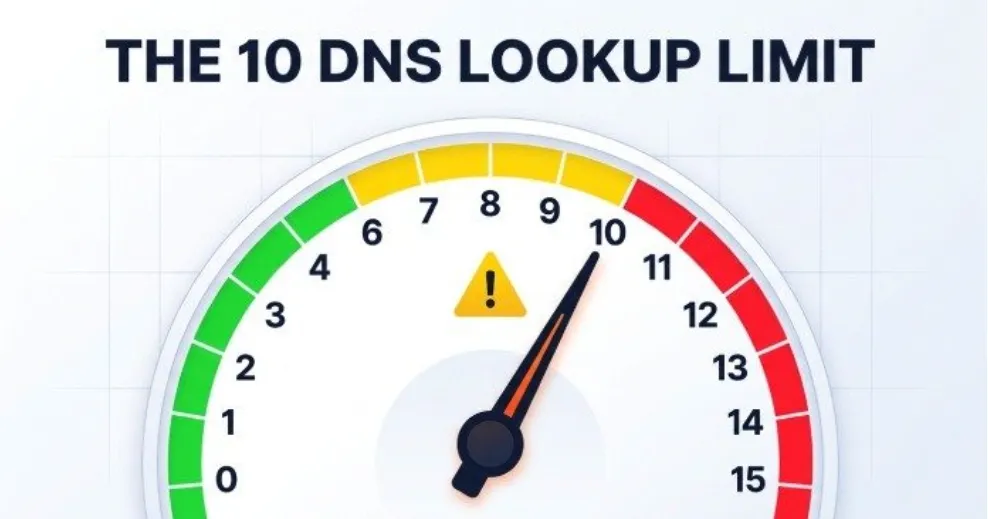
Sender Policy Framework allows a maximum of 10 DNS lookup mechanisms. These include include, a, mx, exists, and redirect. Exceeding this limit causes SPF validation to fail.
For example, relying on multiple third-party senders, each with nested includes, can push the SPF implementation beyond the limit. This is common when using an email service provider, CRM, marketing automation platform, ticketing system, and cloud application at the same time.
If legitimate mail is sent from IP addresses that are not listed as authorized IP addresses, the message may fail SPF. This often happens when a company adds a new mail server or vendor but forgets to update the SPF record.
A proper SPF lookup will show whether the sending source is included in the SPF policy. If the vendor is missing, add the correct include or IP mechanism.
Deprecated or Risky Mechanisms
The ptr mechanism is discouraged because it is slow and unreliable. Older standards such as Sender ID are obsolete and should not be confused with modern Sender Policy Framework. A record may also reference an A record or MX record unnecessarily, increasing DNS lookup count without improving security.
How to Fix SPF Record Issues for Better Email Deliverability
Fixing SPF record problems requires balancing security, functionality, and DNS efficiency. The goal is to authorize legitimate senders while blocking spoofing and phishing attempts.
Consolidate All Authorized Senders
Start by listing every platform that sends email for your organization. This may include Google Workspace, Microsoft 365, Outlook, a transactional email service provider, marketing tools, billing systems, and support platforms.
Then confirm each vendor’s recommended SPF mechanism. For example:
- Google: include:_spf.google.com
- Microsoft 365: include:spf.protection.outlook.com
Only add services that actually send mail for the domain. Overly broad SPF rules increase risk level and weaken email security.
Correct the SPF Syntax
Every SPF record must begin with v=spf1. It should include valid SPF tags and end with an all mechanism such as -all or ~all.
Example:
v=spf1 ip4:203.0.113.25 include:_spf.google.com include:spf.protection.outlook.com -all
A trusted SPF validator can confirm whether the SPF syntax is correct and whether the record meets SPF compliance requirements.
Update DNS Settings Carefully
After editing the TXT record, publish the new SPF record through your DNS hosting provider or domain registrar. Then run another SPF lookup to confirm that DNS has propagated. Some changes appear quickly, while others may take longer depending on TTL values.
Use an SPF checker after every change. This diagnostic tool confirms record validation, checks authorized IP addresses, and verifies that the new SPF implementation supports email deliverability.
Best Practices for Maintaining a Healthy SPF Record
SPF is not a one-time setup. A healthy SPF record requires ongoing SPF monitoring, especially as organizations add or remove vendors.
Audit SPF Records Regularly
Schedule a recurring SPF record check to confirm that all authorized senders are still accurate. Remove unused includes, retired mail server entries, and old IP addresses. This reduces DNS lookup overhead and lowers the risk level associated with unnecessary senders.
Align SPF with DKIM and DMARC
SPF validation is strongest when paired with DKIM and DMARC. DKIM cryptographically signs messages, while DMARC tells mailbox providers how to handle authentication failures. Together, they improve email authentication, strengthen phishing protection, and support better email deliverability.
Use an SPF Validator Before Making Changes
Before publishing changes, test the proposed configuration with an SPF validator or SPF diagnostic tool. Platforms such as EasyDMARC and MXToolbox can identify syntax problems, DNS lookup limits, missing authorized IP addresses, and SPF policy weaknesses.
Monitor Reports and Authentication Results
Review DMARC aggregate data, mail logs, and SPF report details to detect unauthorized activity. If a legitimate sender causes SPF fail results, update the SPF record. If unknown systems attempt to send mail, investigate potential spoofing or phishing.
A well-maintained SPF record, supported by routine SPF lookup, SPF validation, and a reliable SPF checker, helps ensure that trusted messages reach inboxes while fraudulent mail is blocked.